Buyer Admin documentation
Free Format Module
Buyer Admin - How do I edit a Free Format Supplier?
Buyer Admin: How do I enable/disable a marketplace supplier in Free Format?
Contract Module
Buyer Admin: Introduction to the Contract Module
Buyer Admin: How do I create a local contract?
Buyer Admin: How do I approve a Framework?
Buyer Admin: How do I manage data within a live local contract?
Buyer Admin: How do I approve or reject Local Contracts?
Buyer Admin: How do I bulk upload local contracts to the Contract Module?
Buyer Admin: Contract Spend Analysis
Bring your own BI (BYOBI)
Introduction to BYOBI
BYOBI Data Dictionary - Purchase Orders & Order Lines
BYOBI Data Dictionary - Invoice
BYOBI Data Dictionary - Product & Price
BYOBI Data Dictionary - Item Visibility
The Purchasing Homepage and Administration Interface
Buyer Admin: How can I customise the Homepage for my organisation?
Buyer Admin: How do I create a Marketplace News article?
Buyer Admin: Introduction to the Administration interface
Workflow Editor
End User Management
Buyer Admin: Insights - How do I give access to users?
Buyer Admin: How do I deactivate a user's account?
Buyer Admin: How do I re-activate a user?
Buyer Admin: Can I update a user's name if their name changes?
Buyer Admin: How do I create new end user accounts (basket punchout)?
Buyer Admin: How do I change a user's account type?
Sustainability (ESG) Module
Buyer Admin: An introduction to Sustainability Data on Purchasing
Buyer Admin: Sustainability - Reporting on the ESG Insights Dashboard
Buyer Admin: How do I map sustainability attributes (supplier and global)?
Buyer Admin: How do I create my own organisation specific sustainability attributes for suppliers?
Buyer Admin: How do I approve a supplier level Global Sustainability Attribute?
Supplier Catalogue Management
Buyer Admin: Price Approval - How do I approve or reject a price file?
Buyer Admin: The Supplier Onboarding Module (SIM) overview
Buyer Admin: How do I connect with a supplier on my Purchasing marketplace?
Buyer Admin: How do I bulk invite suppliers to my Purchasing marketplace?
Buyer Admin: How do I make a hidden catalogue visible again?
Buyer Admin: How do I hide an entire supplier's catalogue?
Buyer Admin: How do I export a supplier catalogue?
Buyer Admin: How do I mark an entire supplier catalogue as 'Preferred'?
Buyer Admin - How can I change an item's visibility or status?
Supplier documentation
Managing catalogue data on the Supplier Portal
Supplier: How do I complete the OneAdvanced data templates?
Supplier: How do I upload my products?
Supplier: How do I add delivery charges to my catalogue?
UNSPSC Version Update Guide
Supplier: How do I hide a product from a buyer(s)?
Supplier: How do I amend catalogue pricing?
Supplier: How do I upload PDF documents to my products?
Supplier: How do I maintain leading zeros on a .csv download?
Supplier: How do I create new products individually?
Supplier: How do I export my catalogue?
Supplier: eClass codes
Supplier: How do I approve a price file?
Supplier: Catalogue Management tab - What does each file status mean?
Supplier: How do I upload images to my catalogue?
Supplier: How do I provide catalogue pricing?
Supplier: How do I delete products from my catalogue?
Supplier: Catalogue Management tab: How do I use the filtering options
Supplier: How do I edit my product data?
Supplier: Why has my price file failed?
Supplier: How do I amend a catalogue number?
Trader suppliers
Search and product visibility
Supplier: How do my products appear on Purchasing?
Supplier: The Purchasing Search: An overview for suppliers
Supplier: How do I find out if a product is currently visible to my buyers?
Contract Module
Supplier: Introduction to the Contract Module
Supplier: How do I update an active contract?
Supplier: Contract spend analysis
Supplier: How do I export contract data from the Contract Module?
Supplier: How do I activate a framework contract?
Supplier: How do I set up a local contract?
Sustainability Module
Supplier: An introduction to managing sustainability data
Supplier: How do I tag my products with sustainability attributes (Global and Supplier)?
Supplier: How do I tag my organisation against a global sustainability attribute?
Supplier: How do I create and manage supplier sustainability attributes?
Supplier: How can I see which of my products have sustainability attributes already assigned?
Supplier: How do I remove a sustainability attribute from my data?
Supplier: Sustainability - Reporting on the ESG Insights Dashboard
eQuotes
Insights reporting
Supplier Insights: Categorisation (UNSPSC) Dashboard
Supplier: How can I view Insights reports?
Supplier Insights: On and Off Catalogue Orders
Orders and Invoices
Supplier: Purchase Orders
Supplier: How do I resend a rejected e-invoice?
Supplier: PO flip invoicing and Credit Notes
Supplier: How can I review any invoice rejections?
Updating my profile
Buyer End User documentation
Buyer User Guide: How do I use the eQuotes module?
Buyer User Guide: How do I configure my Homepage?
Buyer User Guide: End User (eReqs and basket workflow users only): Multi Factor Authentication for logins
Buyer User Guide: How do I 'favourite' a product?
Buyer User Guide: How do I search for sustainable products?
Buyer User Guide: How do I create and use Saved Baskets?
Buyer User Guide: How do I download a PDF copy of my Purchase Order?
Buyer User Guide: The Purchasing Homepage
Buyer User Guide: How do I raise a free text order?
Supported Frameworks
Buyer Insights: On and Off Catalogue Orders
Buyer User Guide: Searching on the Purchasing marketplace
Buyer User Guide: How do I customise Insights on the homepage?
Release Notes & Product Roadmap
Release Notes
2026
2026-07-09 Release Notes
2026-06-25 Release Notes
2026-03-19 Release Notes
2026-03-10 Release Notes
2026-01-22 Release Notes
2026-01-08 Release Notes
2026-08-20 Release Notes
2026-09-17 Release Notes
2025
2025-12-11 Release Notes
2025-11-13 Release Notes
2025-10-16 Release Notes
2025-08-21 Release Note
2025-07-24 Release Notes
2025-07-10 Release Notes
2025-06-26 Release Notes
2025-05-30 Release Notes
2025-05-01 Release Notes
2025-04-04 Release Notes
2025-03-20 Release Notes
2025-03-06 Release Notes
2025-02-20 Release Notes
2024
2024-10-31 Release Notes
2024-10-17 Release Notes
2024-10-03 Release Notes
2024-09-05 Release Notes
2024-07-18 Release Notes
2024-06-20 Release Notes
2024-06-06 Release Notes
2024-05-23 Release Notes
2024-05-09 Release Notes
2024-04-18 Release Notes
2024-02-22 Release Notes
2024-01-18 Release Notes
2023
2023-12-11 Release Notes
2023-11-23 Release Notes
2023-11-09 Release Notes
2023-10-26 Release Notes
2023-10-12 Release Notes
2023-09-28 Release Notes
2023-08-30 Release Notes
2023-08-17 Release Notes
2023-08-03 Release Notes
2023-07-06 Release Notes
2023-06-22 Release Notes
2023-06-07 Release Notes
2023-05-24 Release Notes
2023-05-11 Release Notes
2023-04-27 Release Notes
2023-04-13 Release Notes
2023-03-30 Release Notes
2023-03-16 Release Notes
2023-03-02 Release Notes
2023-02-16 Release Notes
2023-02-02 Release Notes
2023-01-19 Release Notes
2022
2022-12-08 Release Notes
2022-10-13 Release Notes
2022-08-18 Release Notes
2022-08-04 Release Notes
2022-07-07 Release Notes
2022-06-23 Release Notes
2022-06-09 Release Notes
2022-05-26 Release Notes
2022-04-28 Release Notes
2022-03-03 Release Notes
2022-02-17 Release Notes
2022-01-13 Release Notes
2021
2021-11-25 Release Notes
2021-10-14 Release Notes
2021-09-30 Release Notes
2021-09-14 Release Notes
2021-09-11 Release Notes
2021-09-02 Release Notes
2021-08-19 Release Notes
2021-08-05 Release Notes
2021-07-22 Release Notes
2021-07-08 Release Notes
2021-06-24 Release Notes
2021-06-17 Release Notes
2021-05-27 Release Notes
2021-04-08 Release Notes Amendments Service
2021-03-04 Release Notes
2021-02-04 Release Notes
2021-01-21 Release Notes
2020-12-17 Release Notes
Product Roadmap
Marketplace (Purchasing) Video Content
Video - Purchasing Overview Project v1
Video - Saved Baskets and Favourites
Video - eOligo Module
Video - eServices Module
Video - Managing Internal Catalogues
Video - eQuotes
Video - Free Format
Video - eCatalogue Overview
Video - Supplier Insights
Video - Basket Workflow
Video - eFinancials Integration.mp4
Video - Punchouts
Video - Contract Management
Video - PO Flip eInvoicing
Video - Price Approval
Video - eRequisitions
Video - Sustainability Module - Buyers and Suppliers
Video - Buyer Insights
Logging into the Purchasing Marketplace
Buyer Admin: Accessing locked admin log-ins (including forgotten password)
Supplier: Multi Factor Authentication when logging in
Supplier: How do I request a new supplier portal login to be created?
Buyer Admin - How do I access my admin account?
Setting up MFA in Google Chrome Extension
Supplier: How do I reset my Purchasing account password?
Buyer Admin: Multi Factor Authentication for logins
Inactive User Account - How can I reactivate my marketplace login?
Setting up MFA in Microsoft Authenticator and Removing an Existing QR code
MFA Browser Extensions
Local Catalogue Management
Table of Contents
- How do I change the visibility of a marketplace supplier in the Free Format module?
- All Categories
- Buyer Admin documentation
- Free Format Module
- Buyer Admin: How do I enable/disable a marketplace supplier in Free Format?
Buyer Admin: How do I enable/disable a marketplace supplier in Free Format?

- How do I change the visibility of a marketplace supplier in the Free Format module?
To support procurement policies and prevent users from bypassing catalogue controls, you can configure which suppliers are available in the Free Format module for your organisation to order from.
This article explains how administrators can control which marketplace suppliers can be available in the Free Format module at both company and business unit (BU) level.
- Company-level : This setting determines the visibility of the supplier for users assigned at the company level (i.e., not within a specific business unit). Toggling this setting also gives you the option to apply the same visibility status across all business units.
- Business Unit : Each business unit has its own setting, which can be used to override the company-level setting. This allows you to customise the supplier's visibility for specific business units.
How do I change the visibility of a marketplace supplier in the Free Format module?
Where can I manage these settings?
Only administrator users with access to SIM (Supplier Onboarding). Within the SIM module for each supplier you will find a 'Free Format Configuration' tab
- Login to your account > Navigate to SIM (Supplier Onboarding) in the top right hand corner
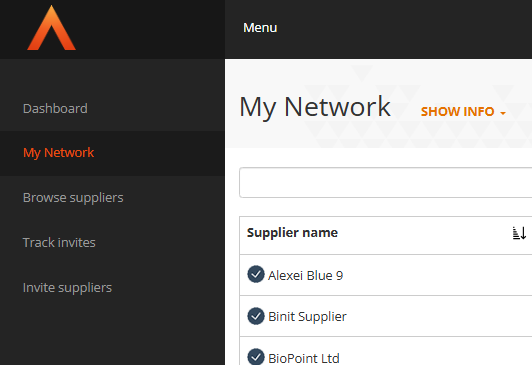
- Click on My Network on the left hand navigation bar
- In the table of suppliers, find the supplier you wish to change
- Click Actions alongside the supplier.
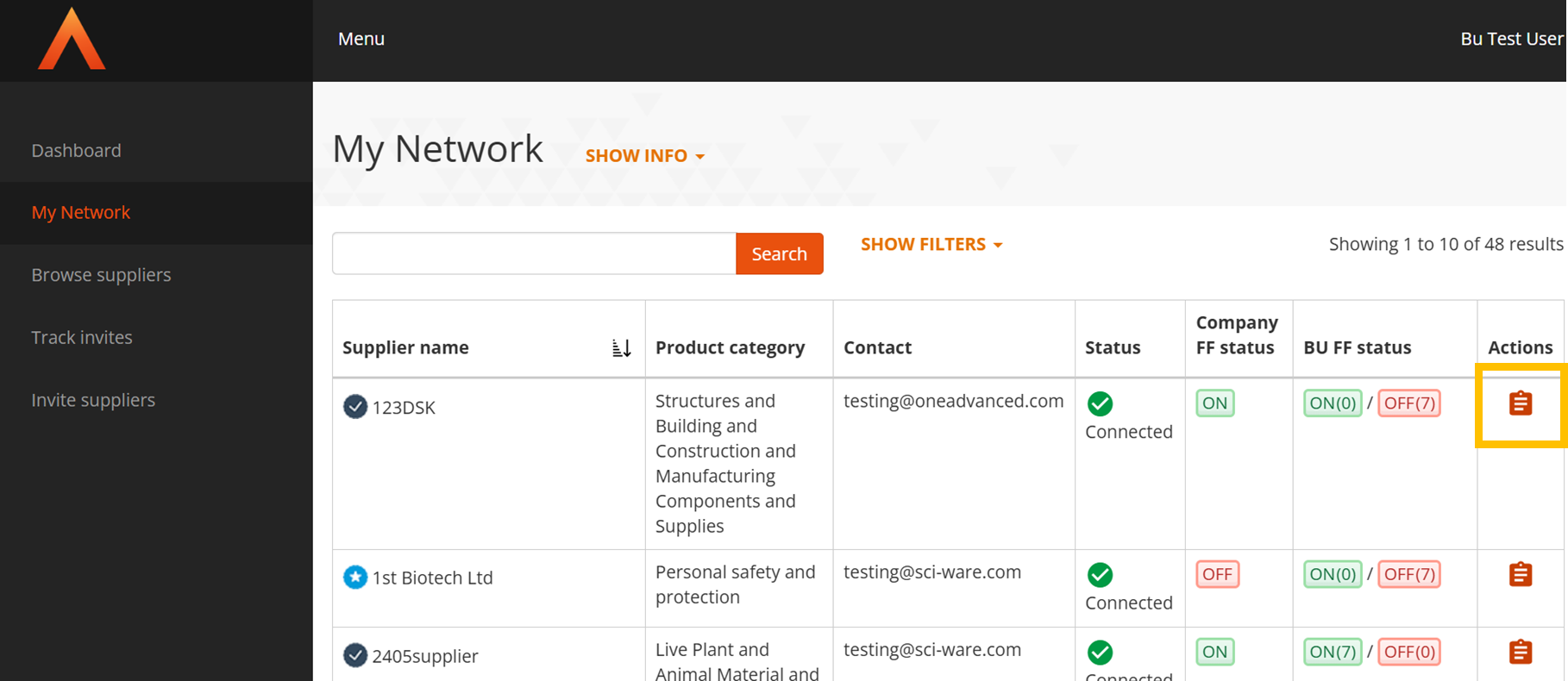
- Select Free Format Configuration tab
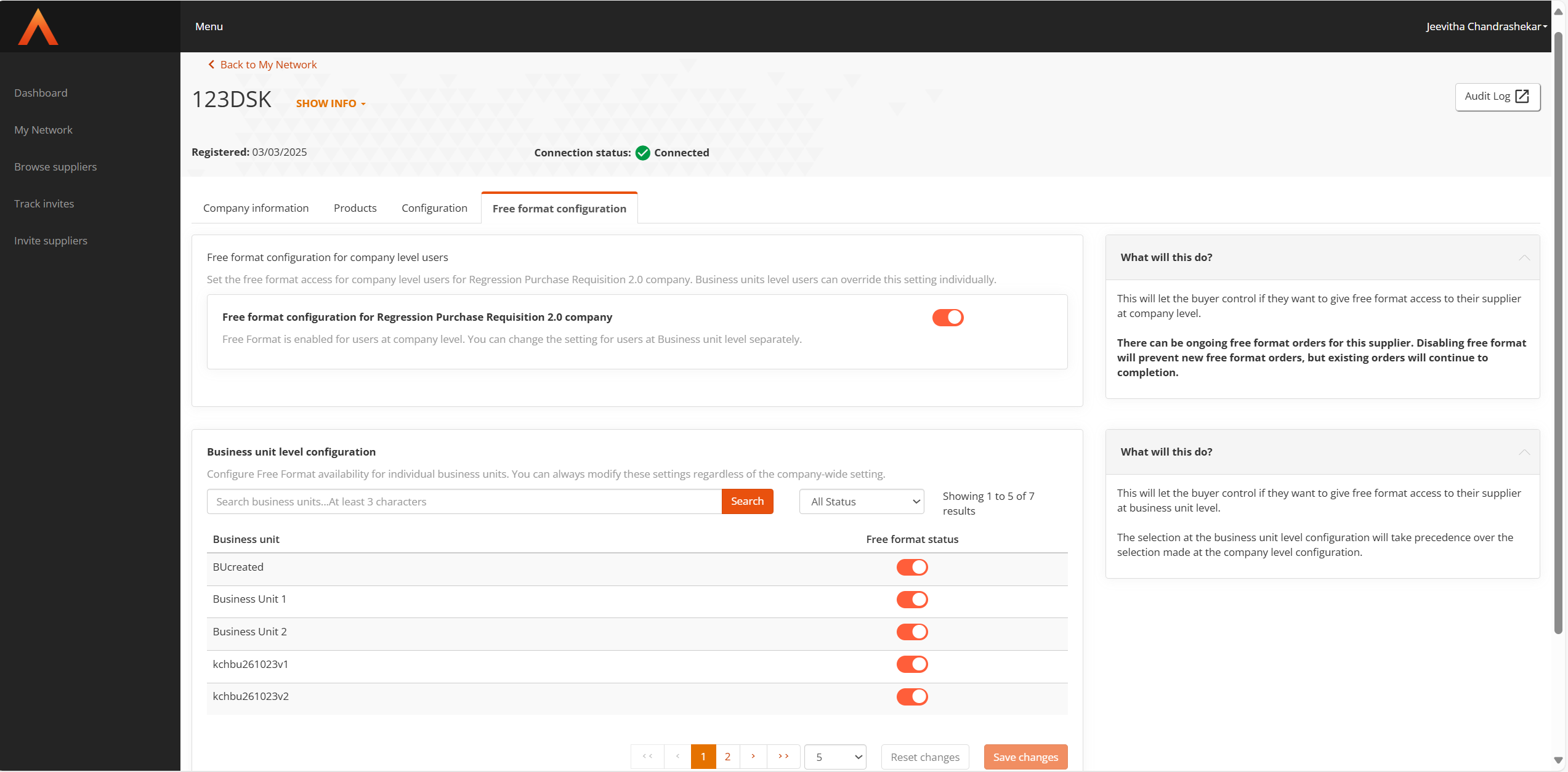
- A new tab opens showing Free Format settings for that supplier. You can control the visibility of a supplier for different levels within your organisation using the following settings:
- Company-level toggle: This setting determines the visibility of the supplier for users assigned at the company level (i.e., not within a specific business unit). Toggling this setting also gives you the option to apply the same visibility status across all business units.
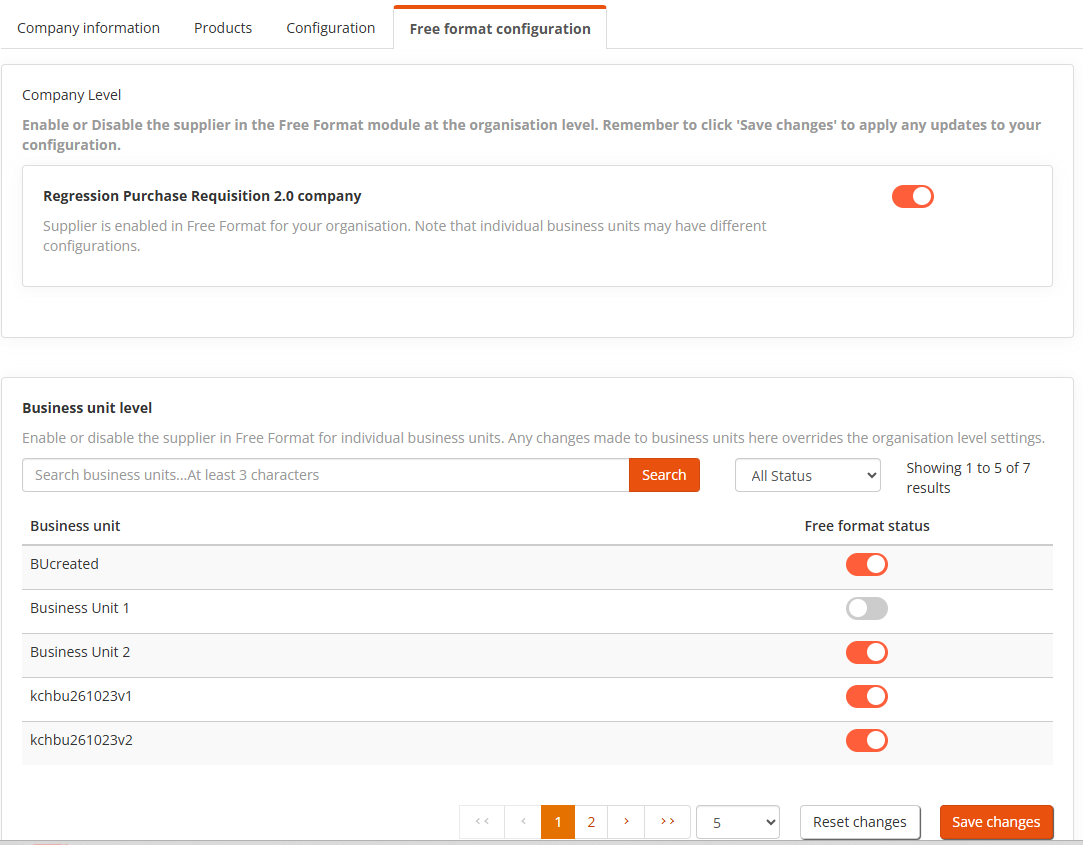
- Business Unit toggles: Each business unit has its own toggle, which can be used to override the company-level setting. This allows you to customise the supplier's visibility for specific business units.
In your organisation, you may have users that are assigned at both Company Level or Business unit. If you do not use Business units, then all of your users will be located at the 'Company level'.
Organisations with Business Units
Organisations who have implemented business units may users in the business units, or also at Company Level (if the user has not assigned a business unit
How do I change the visibility for Company Level users or all your organisation
If you are using this for the first time the settings are default to 'On' for both Company and Business Unit.
- In the 'Company Level' section change the toggle to the required status
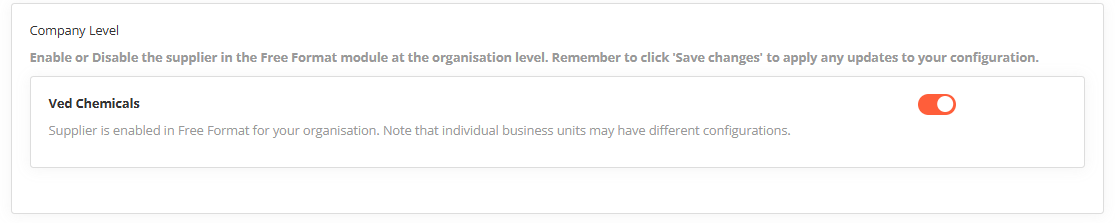
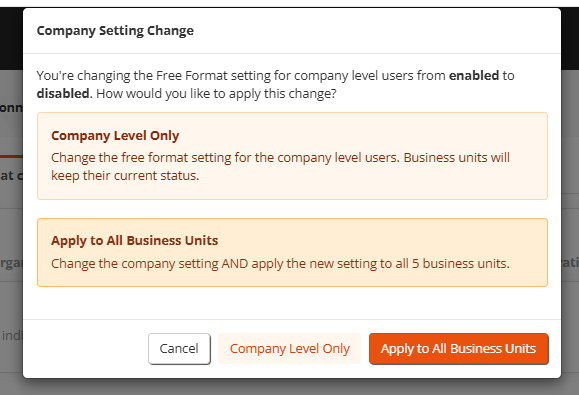
- A pop-up will display where you will be given two options:
Company Level Only: If you want to only make this change for users assigned at company level i.e. not any users that are in a business unit.
Apply to All Business Units: If you want to make this change for all users at both the company level and all business units. This is useful for bulk enabling or disabling Free Format across your whole organisation. - Click one of the options at the bottom of the pop-up
- Changes only take effect when you click Save Changes.
How do I change the visibility of an individual business unit
- To change the visibility within a specific or multiple business units change the toggle to to the required status against the business unit. (Note: The business unit settings override the Company level status)
How do I know what suppliers are visible in the Free Format module?
How to navigate the “My Network” page
- Go to the Marketplace Buyer page.
- Select SIM.
- Click My Network.
You will see a list of suppliers connected to your organisation.
Understanding the Free Format Status
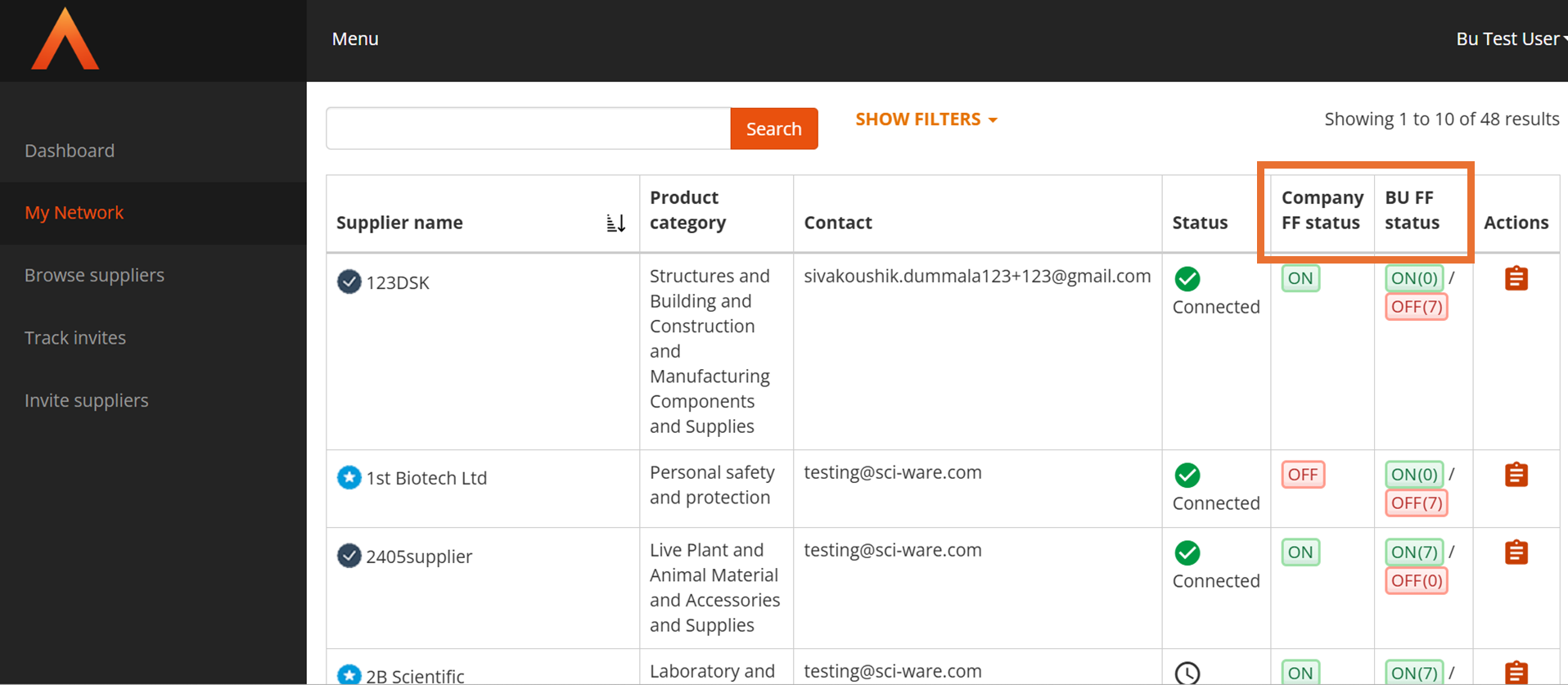
- On the My Network page you will see Free Format status at both levels:
- Company FF Status
- ON – Free Format ordering is enabled for this supplier at the company level. Users whose access is controlled only at company level can order from this supplier via the Free Format module.
- OFF – Free Format ordering is disabled for this supplier at the company level. Users controlled by this setting cannot order from this supplier via the Free Format module.
- BU FF Status
- Shows, for each supplier, how many Business Units have Free Format ON vs OFF.
- This helps you quickly identify where Free Format is enabled or disabled at BU level.